

Ekaay.AI Reception, screen by screen.
This is what a patient sees at the Ekaay.AI Reception kiosk, from hello to the token sticker, and what your staff see behind it. Every screen is from the kiosk app, with demo data, so no real patient appears.
 Demo data
From hello to the doctor's door.
The screens in the order a patient meets them, at the kiosk and beyond it.
 Demo data
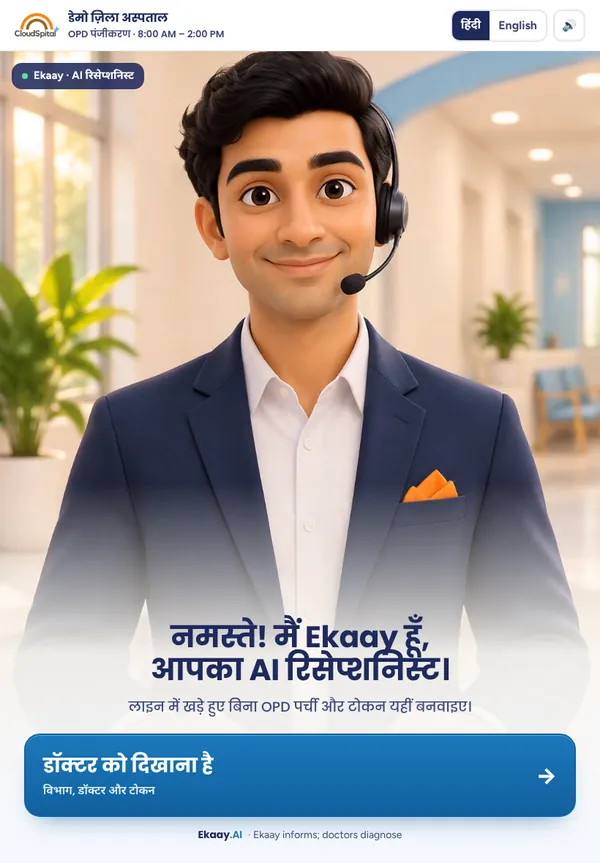
Welcome, in Hindi. 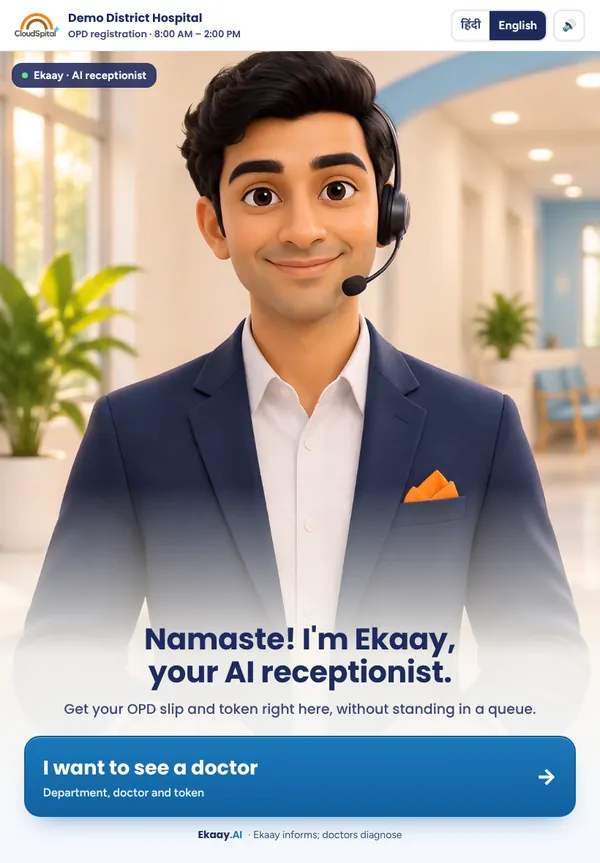 Demo data
And in English. Namaste, in Hindi or English
Ekaay, the receptionist on the screen, greets the patient in Hindi or English, in his own voice. One tap starts the OPD registration.
 Demo data
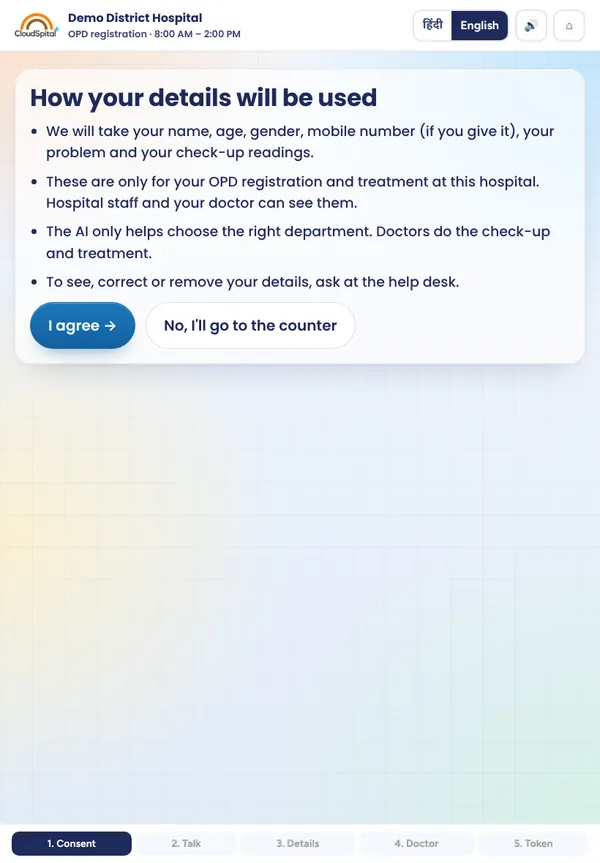
Consent before anything else. Consent comes first
Before anything else, the kiosk shows how the patient's details will be used. A patient who would rather not is sent to the counter.
 Demo data
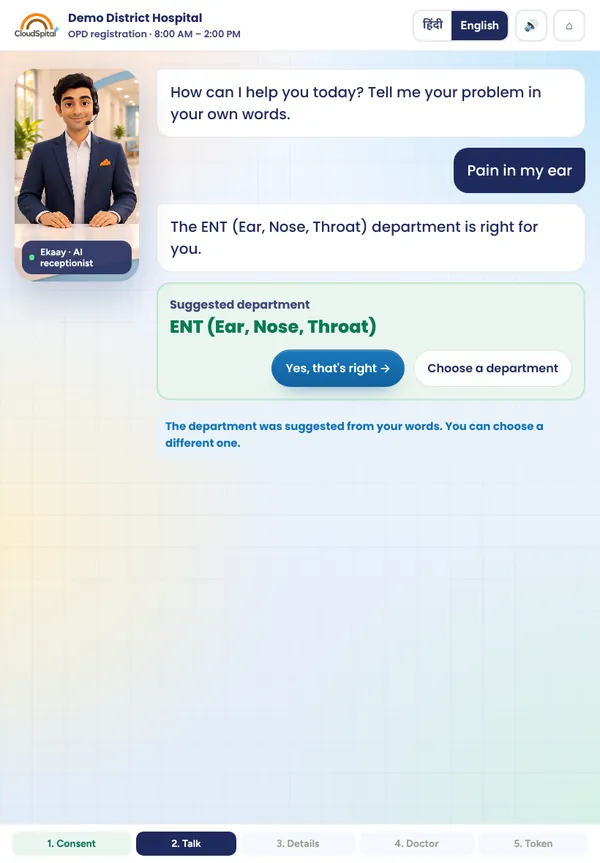
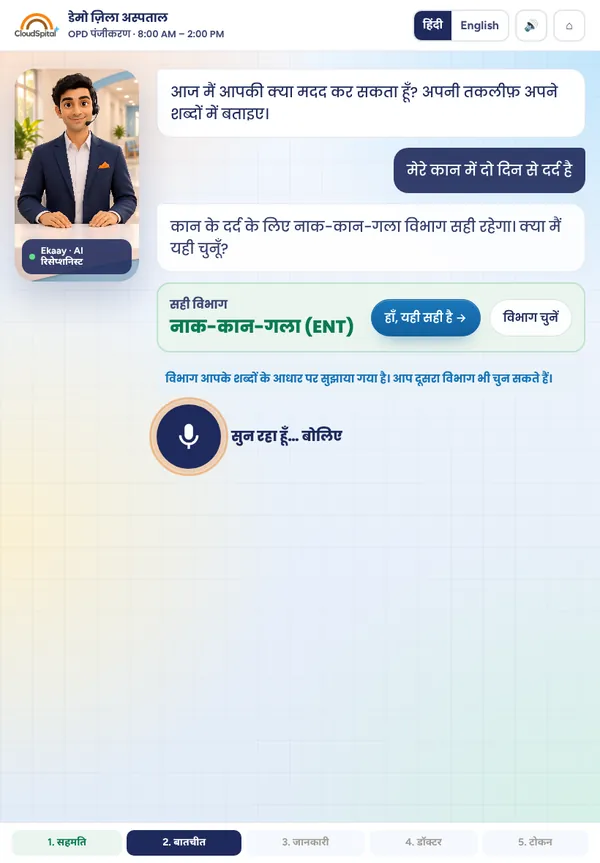
Talking to Ekaay, in Hindi. Demo dataOr typing, in English. Talk, type or tap
The patient tells Ekaay what's wrong by voice, by typing, or by tapping a common problem. Ekaay suggests a department, like ENT for ear pain, and the patient can always choose another.
 Demo data
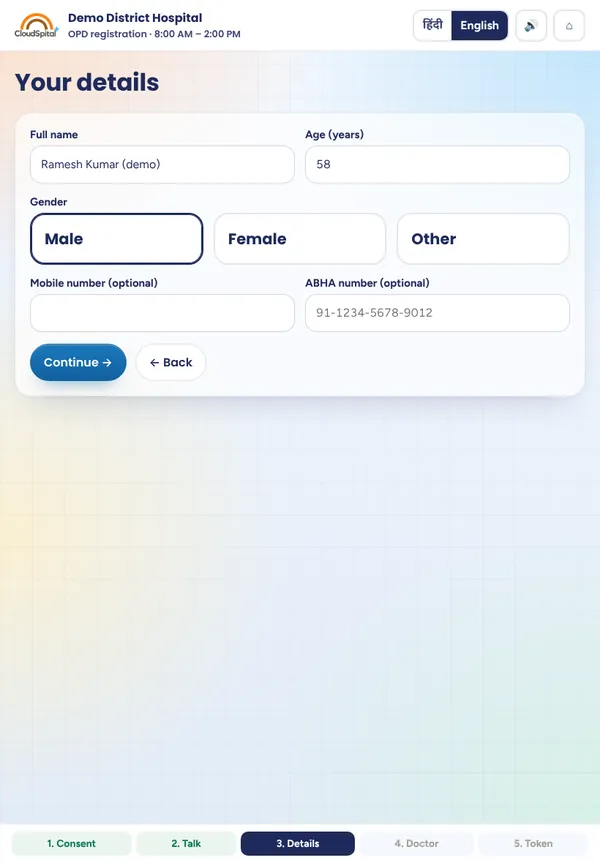
Name, age and gender. Name, age and gender
The patient types their name and age and taps their gender. The mobile number is optional, so patients without a phone register too. The kiosk never listens while names and numbers are typed.
 Demo data
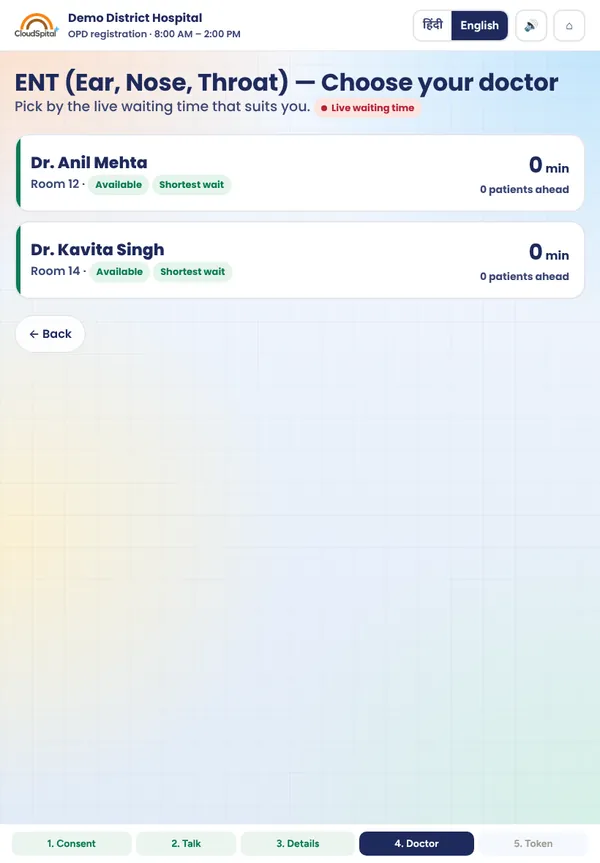
A doctor by live waiting time. A doctor by live waiting time
The screen shows the department's doctors, their rooms and the live waiting time for each, and the patient picks what suits them.
 Demo data
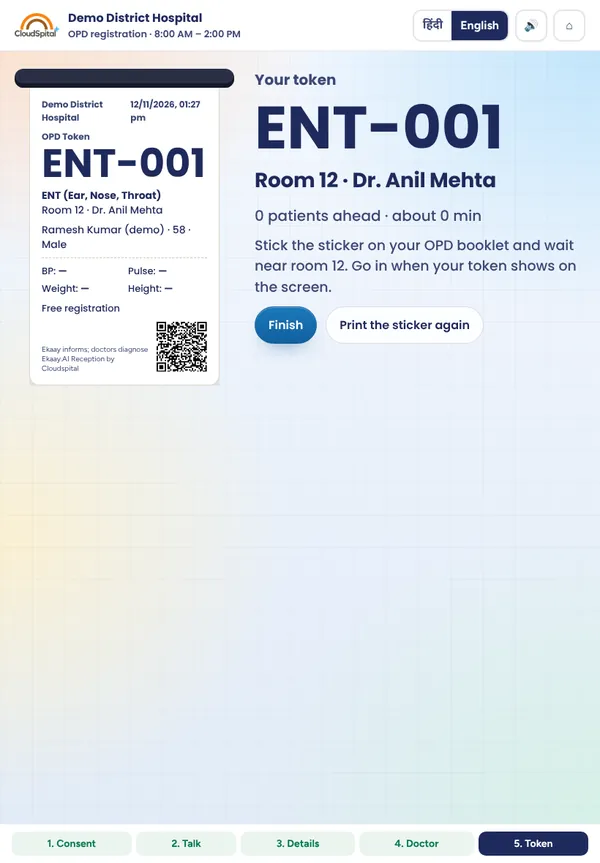
The token sticker. The token sticker
The kiosk prints a sticker with the token, department, room and doctor for the OPD booklet, and tells the patient where to wait.
 Demo data
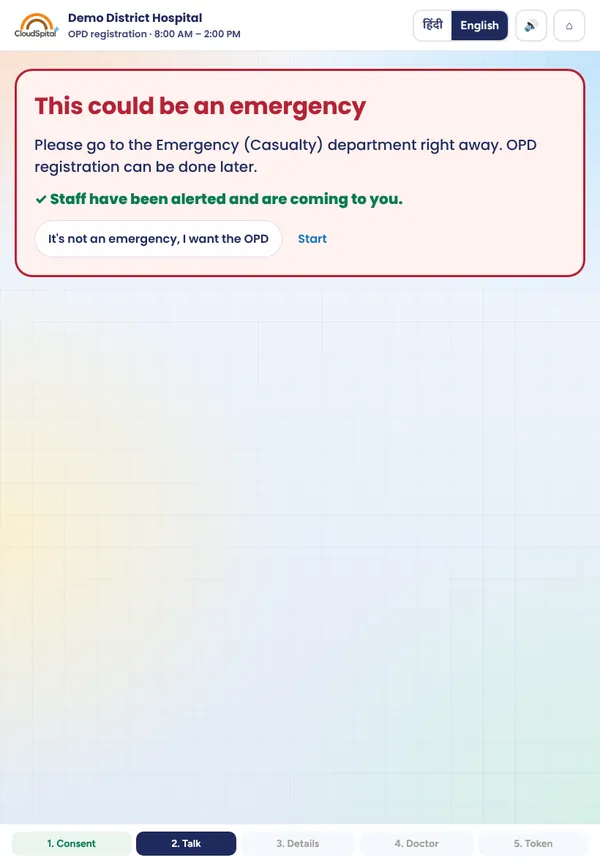
Emergency words alert the staff. Emergencies reach staff at once
If the patient's words sound like an emergency, such as chest pain, the kiosk sends them to the Emergency department and alerts the staff straight away.
 Demo data
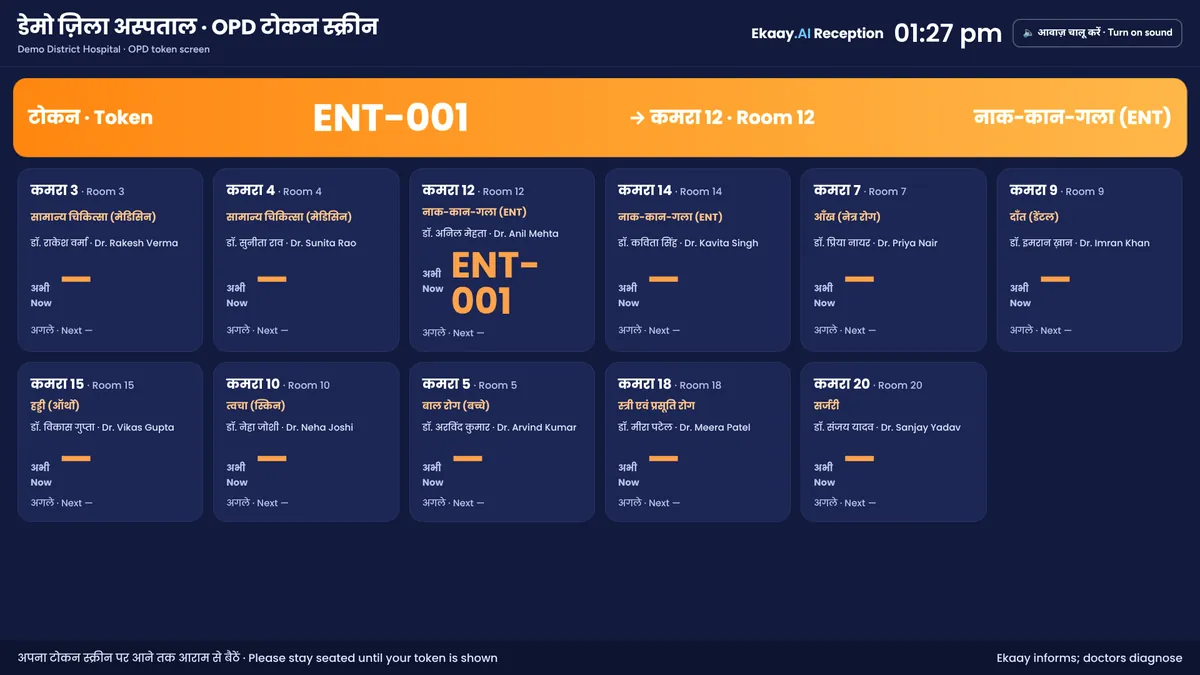
The Token TV in the waiting hall. 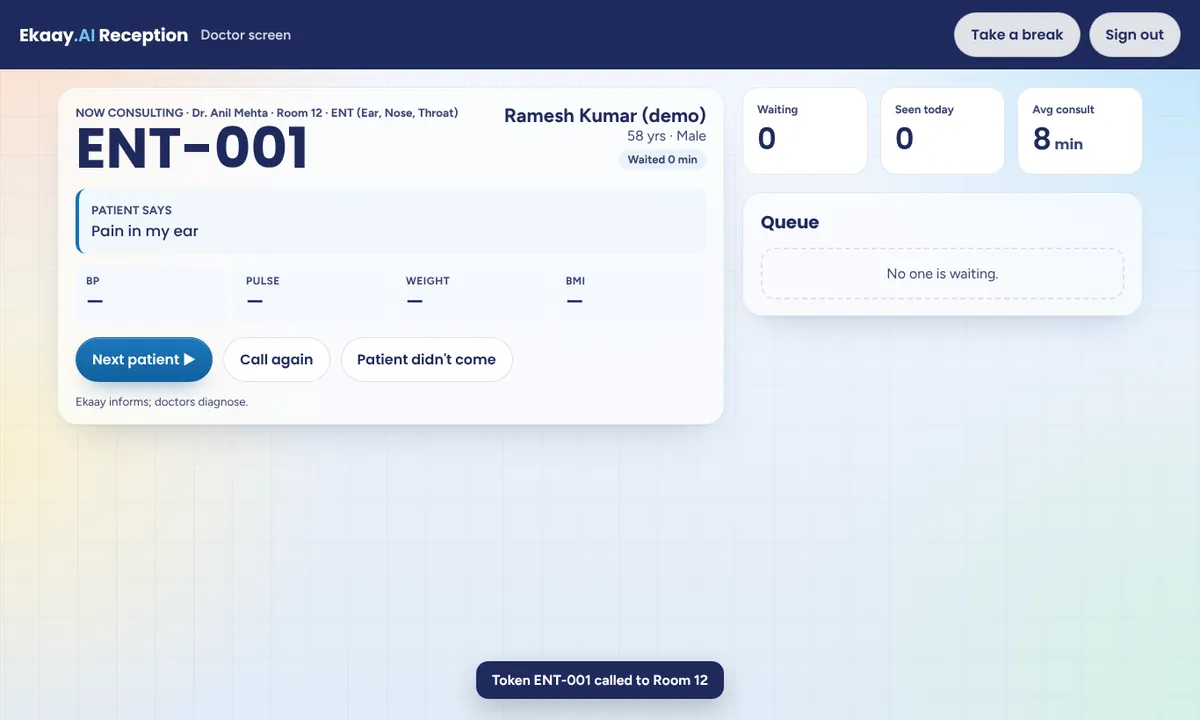 Demo data
The doctor's screen. The Token TV and the doctor's screen
The Token TV in the waiting hall shows each room's token and announces the next one. Each doctor sees their queue and what the patient told Ekaay, and calls the next patient with one button.
What your staff see.
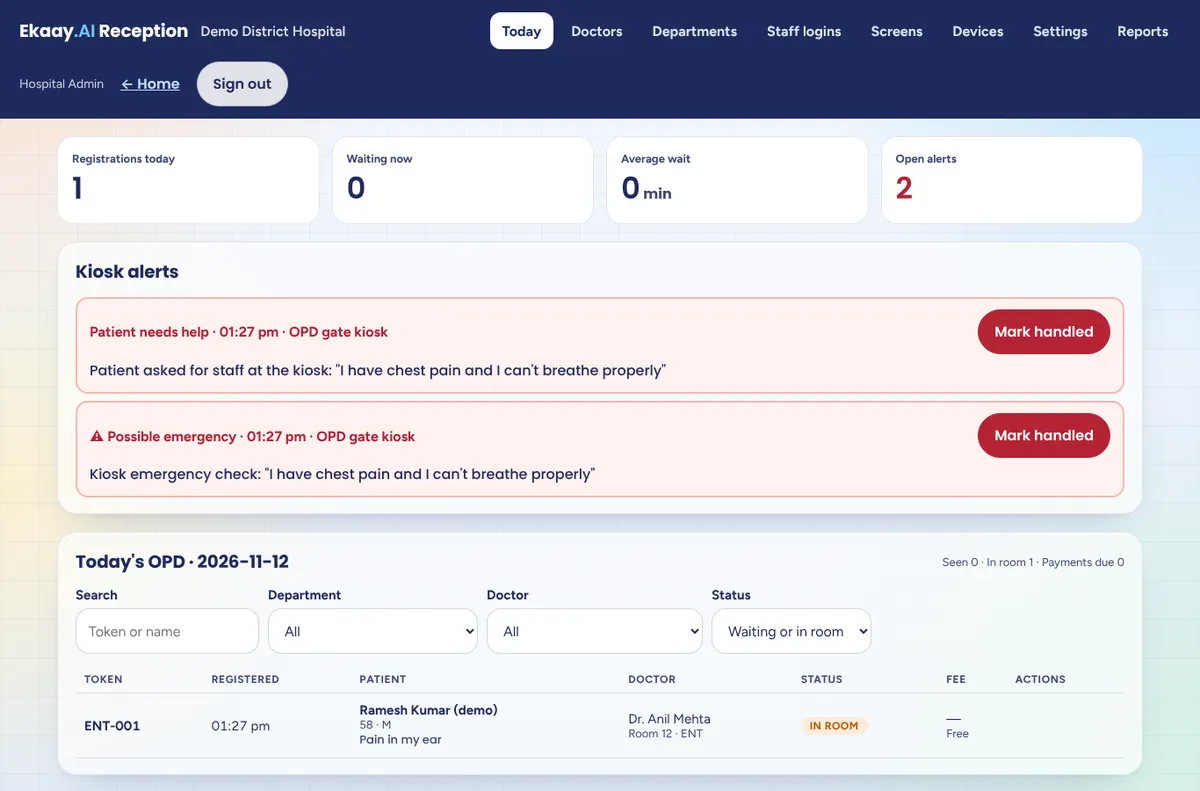
The same kiosk app has a staff side, for the day's patients, reports and devices.
 Demo data
Today: the day's registrations, kiosk alerts and the OPD register, live.
 Demo data
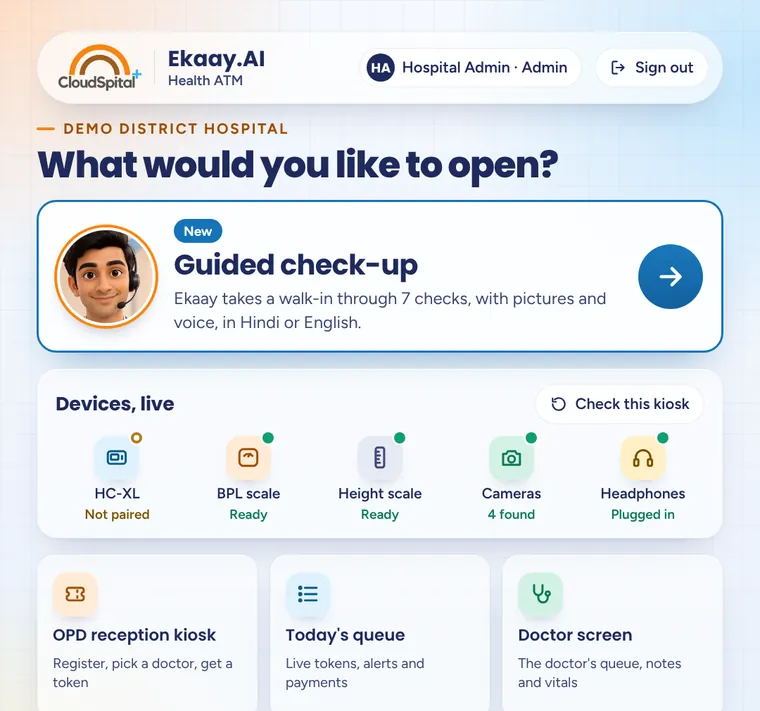
Staff home: a tile for each tool, with the kiosk's devices shown live.
 Demo data
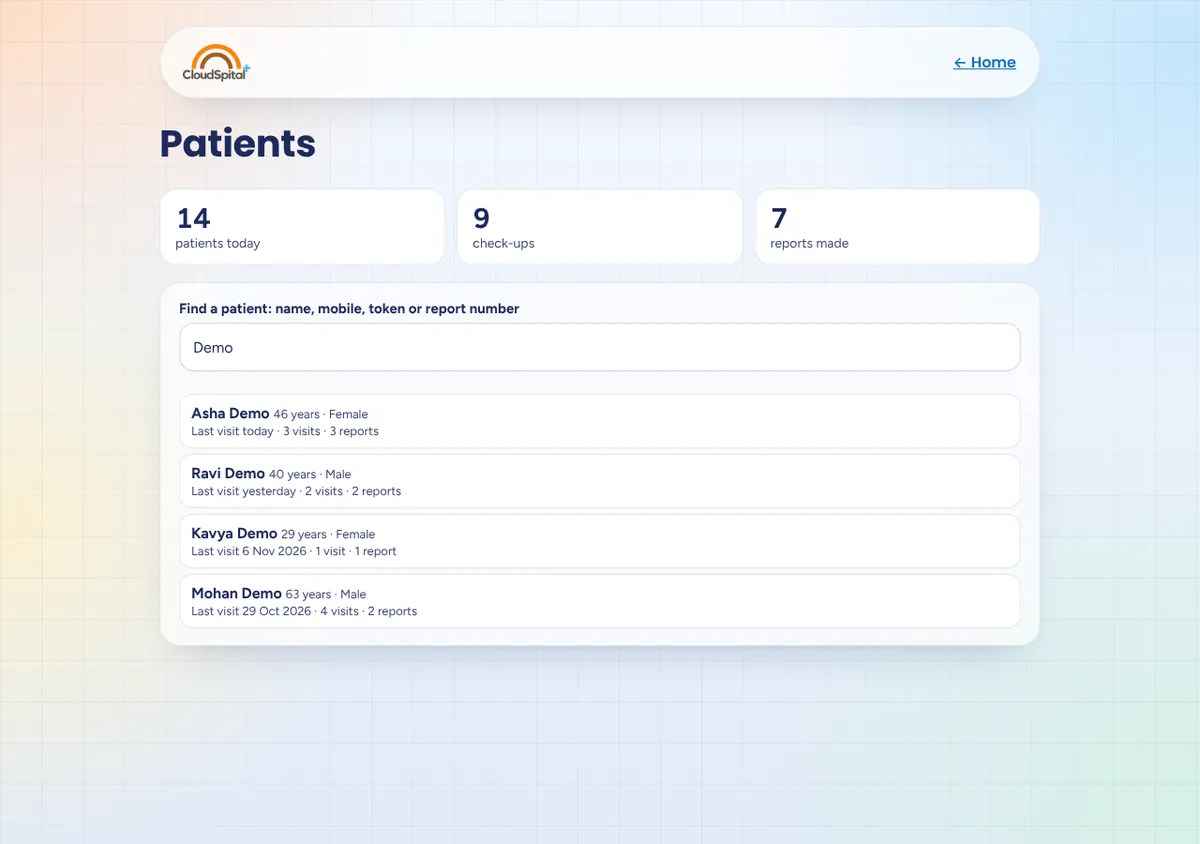
Patients: today's numbers, and any earlier patient found by name, mobile, token or report number.
 Demo data
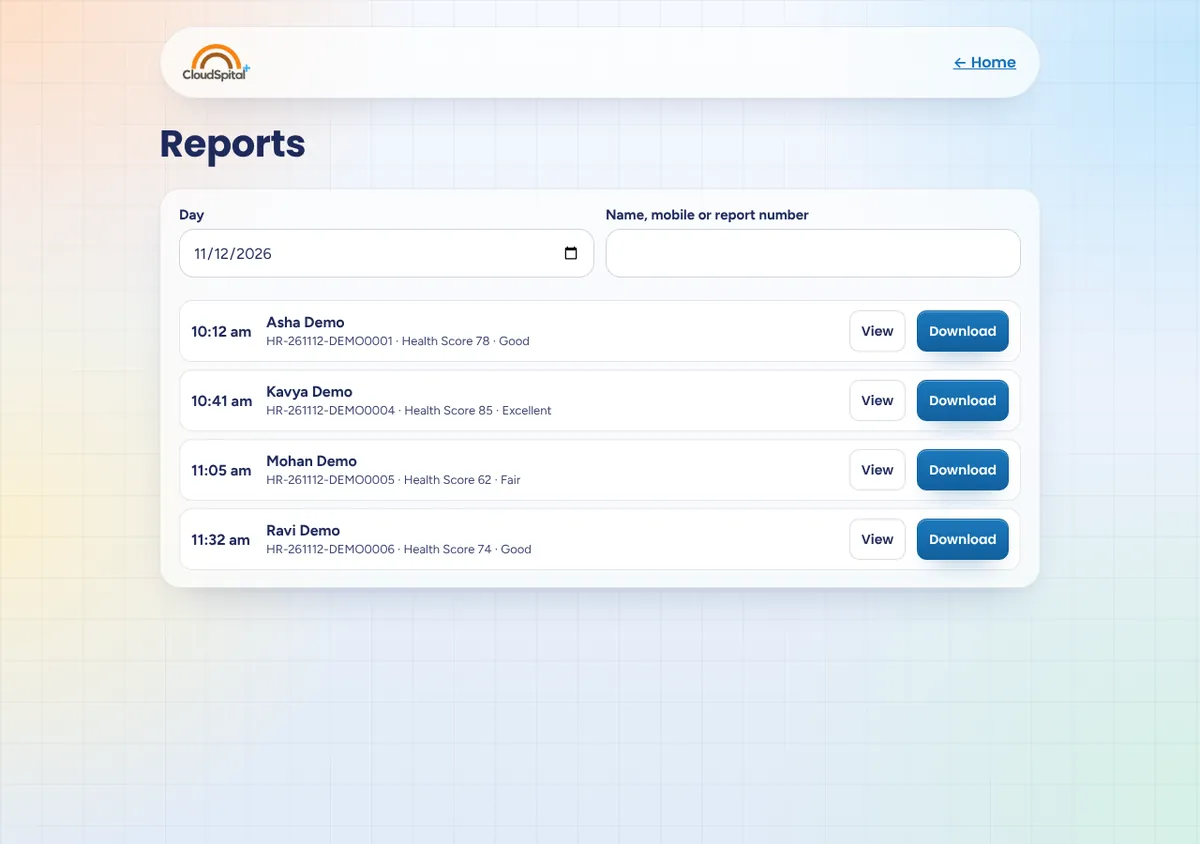
Reports: each check-up's Smart Health Report, to view or download as a PDF.
 Demo data
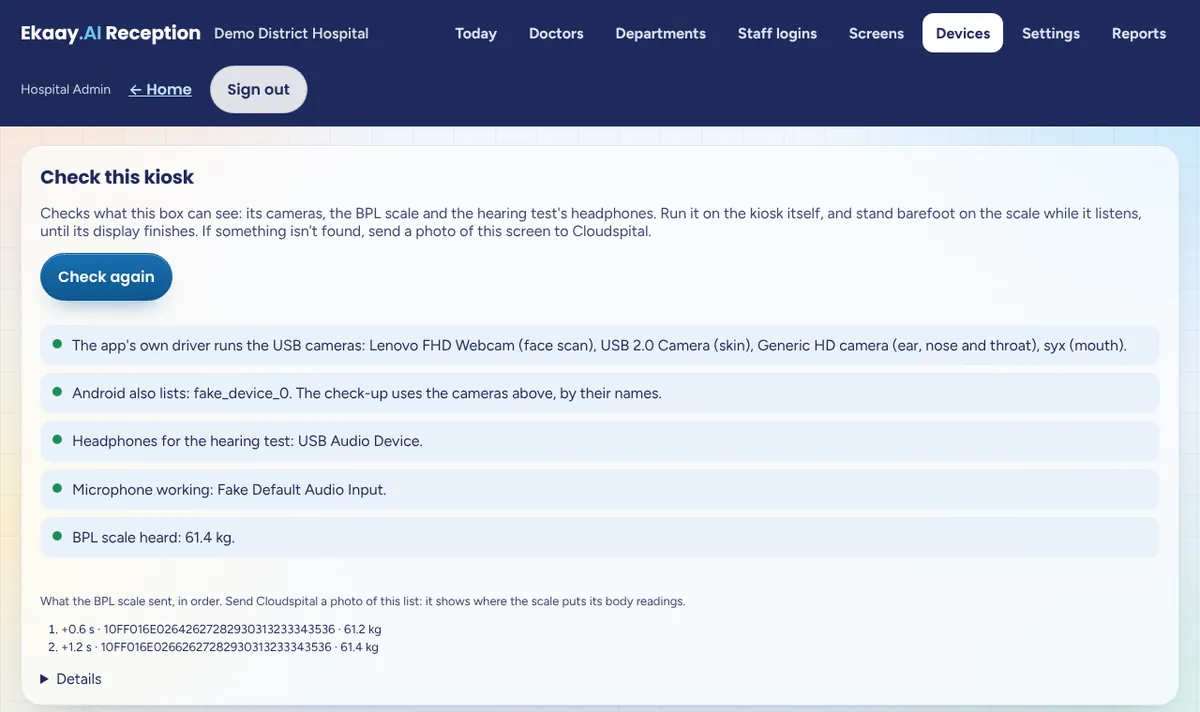
Check this kiosk: one check that tests every device on the kiosk.
 Demo data
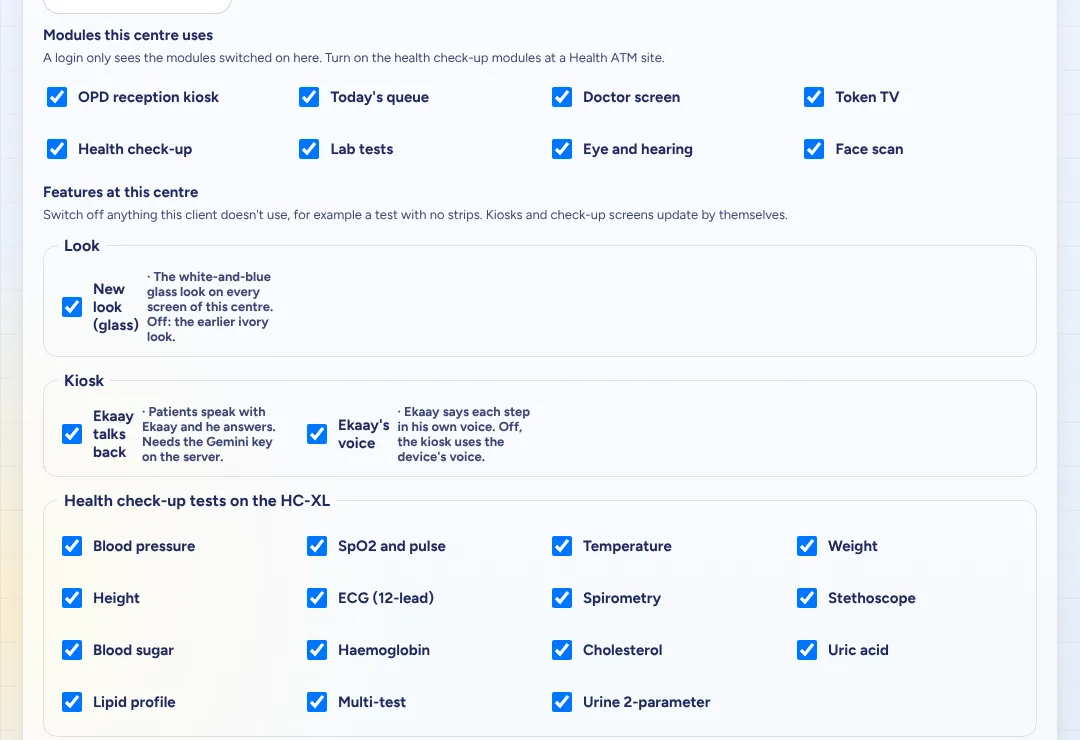
Settings: each centre switches modules and features on or off.
Ekaay informs. Doctors decide.
- A suggestion, not a decision. Ekaay suggests a department from what the patient says. The patient can choose another, and staff can move any waiting token to another doctor.
- Counters stay open. Anyone who needs a person can still go to the counter, and you decide how many counters stay open.
Kept in India.
- India's servers. Patient data stays on Cloudspital's servers in India, aligned with the DPDP Act 2023.
- Demo data on this page. Every screen here uses made-up patients.
See it at your OPD.
Tell us your OPD's daily footfall, departments and fees, and we'll propose a set-up for your hospital.
About the screens.
Can't find your answer? Ask our team and we'll reply within one working day.
Are these real screens?
Yes. They come from the Ekaay.AI Reception kiosk app, with a demo hospital and made-up patients, so no real patient appears.
What if a patient can't use the touchscreen?
They can talk to Ekaay instead. Anyone who needs a person can still go to the counter: you decide how many counters stay open alongside the kiosks.
Does every patient need a phone?
No. The mobile number is optional, and the token sticker and the Token TV work for everyone.
Can staff change the department or the doctor?
Yes. Ekaay suggests a department from what the patient says, and the patient can choose another. Staff can move any waiting token to another doctor. Ekaay informs; doctors decide.
Can we switch parts off?
Yes. Each centre chooses its modules and features in the kiosk's settings, for example whether Ekaay talks back.
How do we start?
With a pilot. Book a demo and tell us your OPD's daily footfall and departments, and we'll propose a set-up for your hospital.